Use the Sorb plugin in Figma
When you finish, the Sorb™ plugin (Canopy) is connected to your project and you can push a token change from Figma into a running app. You need Figma desktop and a Sorb account — nothing else. Connecting takes one click; you never type a URL or a key.
Works with Figma. Not affiliated with, or endorsed by, Figma. Figma is a trademark of Figma, Inc.
Install the plugin
The plugin is not on the Figma Community yet. During the beta you download a zip and import it into Figma desktop as a development plugin — about three minutes, step by step in Install (beta). Once imported, open it from Plugins → Development → Sorb in your Figma file. The panel opens at 475 × 560 px. Figma desktop is required — the browser version of Figma can't import development plugins, and sign-in opens your system browser.
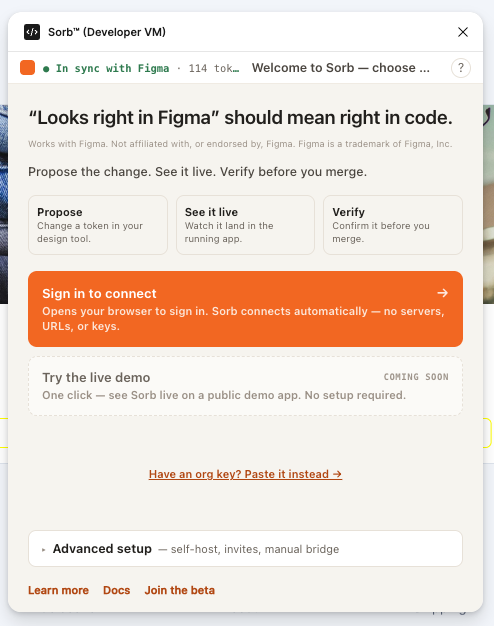
Connect by signing in
The front door promotes exactly one path.
- Click Sign in to connect. The card reads "Opens your browser to sign in. Sorb connects automatically — no servers, URLs, or keys."
- The plugin generates a single-use pairing code and opens
app.sorbcloud.com/plugin-connect?code=…in your browser. The panel switches to a waiting state: "Waiting for you to sign in in your browser…" - Sign in with your beta invite in the browser. The cloud resolves your active org and
its default project, then hands the plugin a publishable key
(
sorb_pk_…) — safe to embed in a client — together with the bridge URL and your project's app URL. - The plugin polls
GET /api/plugin-connect/poll?code=…about every two seconds until the browser side finishes, then reports "Connected — you're set. Opening your tokens…" and loads the tokens already committed to your project.
The pairing code is single-use and expires after roughly five minutes. If you walk away, the panel says "This took too long — the sign-in link expired. Try again." — click Sign in to connect again to start a fresh code.
If the browser tab closed before you finished, click Reopen the browser on the waiting screen. Cancel returns you to the front door without connecting.
Full walkthrough, including every fallback: Connect flows.
What you get after connecting
The tab bar appears with three views:
| View | What it's for |
|---|---|
| Tokens | The primary workspace — a searchable list of your tokens with the changed ones pinned, plus the preview and save actions. |
| Components | Insert components captured from your Storybook into Figma as native nodes. |
| Settings | Your account (dashboard, log out), insert behavior, and — under Advanced setup — the bridge, app, Storybook, GitHub and key fields. |
Each has a walkthrough:
The loop
- Load. The primary button reads Load from App until a token set is in the panel. Click it to pull the tokens your project has already committed. (You can also pull from Figma Variables — Sync from Figma now in the ⋯ menu.)
- Edit. Change a value in the list. Changed rows collect into a pinned CHANGED group, and the primary button becomes Preview in app with a count chip ("3 changes"). Click the chip to filter the list to just those changes.
- Preview. Click Preview in app. Your app opens with a preview session and re-skins live; edits keep pushing as you type. Previews are ephemeral — nothing is written to your repo.
- Save. Click Save to project → to persist the working set as a new versioned token set on your project. The panel reports the count, the set name, and the version — for example, "Saved 42 tokens → 'Figma Variables' (v3)." You can then open it in the dashboard's Token Explorer.
- Open PR. Reviews your changes in a diff drawer, then Copy diff + open GitHub → copies the merged tokens to your clipboard and opens your configured GitHub file in its web editor — paste and open the pull request yourself. It stays inert until its preconditions are met, and the panel says which one is missing: "Open PR unlocks when GitHub is connected" (the GitHub file URL in Settings → Advanced setup isn't filled in) or "Open PR unlocks after a preview — it opens the change you previewed."
Preview and save go to different places on purpose. A preview is a temporary session your app reads; a save is the durable snapshot on your project. The plugin's Open PR is this manual, clipboard-assisted flow — a separate, fully automated pipeline exists on the dashboard and API and opens a real pull request for you from a saved version; see Token version → GitHub PR.
Advanced setup
Everything below is optional. It exists for self-hosting, for headless and CI use, and for the case where the designer and the developer are the same person. None of it is needed on the hosted path.
Open the Advanced setup disclosure on the front door (the summary reads "Advanced setup — self-host, invites, manual bridge") to reach:
- Paste an invite from your developer — redeem a handshake code a developer
generated with
sorb handshake --copy. Paste it and the plugin fills in the bridge, app and key for you. - Invite a developer — copies a short message telling your developer to run
npm i -g @sorb/juice,sorb dev, thensorb handshake --copyand send you the code. - Manual bridge setup — type the bridge origin, app URL and key by hand.
- "Found a Sorb bridge running on this computer." — a discovery banner with a Connect button. The plugin probes for a local bridge only once you open Advanced setup; it never probes on its own.
An org key is the one fallback promoted outside Advanced setup: Have an org
key? Paste it instead → on the front door takes a sorb_pk_… publishable key,
resolves your org's bridge, and connects. Use it for an existing key, or where
opening a browser isn't practical.
After connecting, the same fields live in Settings → Advanced setup — bridge, app & key: Bridge origin, App URL, Storybook URL, GitHub file, API key. On a hosted connection they are filled in for you and marked "✓ synced from your invite".
How the plugin is built
The plugin has two halves that talk over postMessage:
| Half | Runs in | Can do | Cannot do |
|---|---|---|---|
code.js | Figma's plugin sandbox (main thread) | figma.* — read and write Variables, insert nodes, figma.openExternal | Network requests |
ui.html | An iframe | fetch — the bridge, the cloud | Any figma.* call |
Every network call originates from the iframe; every Figma document change goes through the main thread. This is why sign-in works the way it does: the iframe cannot open a browser window, so it asks the main thread to, and it cannot receive an OAuth redirect, so the browser hands the result back through the pairing poll instead.
Next
- Connect flows — every path, in order.
- Accounts, orgs & keys — what a publishable key can and cannot do.
- Tokens & taxonomy — how values resolve and bind.
- Troubleshooting — symptom → cause → fix.
Works with Figma. Not affiliated with, or endorsed by, Figma. Figma is a trademark of Figma, Inc.