Tokens View
The primary workspace. Tokens View shows your working set as a searchable, scrolling list, with one pinned action bar at the bottom that walks you from loading tokens to previewing them to saving them.
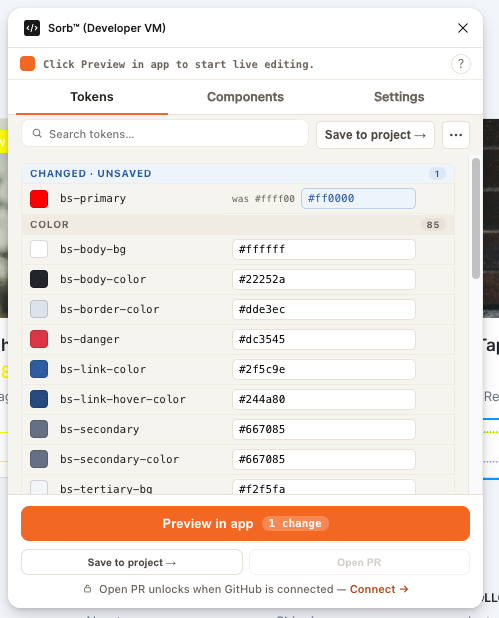
Layout at a glance
┌──────────────────────────────────────────┐
│ [Tokens ▼]  [Components]  [⚙ Settings]    │  ← tab bar
├──────────────────────────────────────────┤
│ 🔍 Search tokens…      Save to project→ ⋯ │  ← toolbar
├──────────────────────────────────────────┤
│ ▸ CHANGED · UNSAVED (3)                    │  ← pinned, only when dirty
│ ⬛ color/action/primary  #f26722  was …[✕] │
├──────────────────────────────────────────┤
│ ▸ Color (12)                               │  ← grouped rows
│ ⬛ color/text/primary    #333333      [✕]  │
│ 🔢 spacing/md            16px        [✕]   │
├──────────────────────────────────────────┤
│ [ Preview in app · 3 changes ]             │  ← primary CTA
│ Save to project →      Open PR             │  ← secondary actions
└──────────────────────────────────────────┘
Toolbar
| Control | What it does |
|---|---|
| Search tokens… | Filters the list by name or value as you type. |
| Save to project → | Persists the working set as a new versioned token set on your project — the count and version appear when it finishes ("Saved 42 tokens → 'Figma Variables' (v3)"). |
| ⋯ (more) | Opens the overflow menu below. |
The overflow menu holds the controls you reach for less often:
| Item | What it does |
|---|---|
| Auto-sync from Figma | Watches your Figma Variables (~1.5s poll plus a document-change accelerator) and updates the working set when they change. A dot shows freshness: green = live, orange = stale, red = error, gray = off. |
| Sync from Figma now | A one-shot re-collect, instead of waiting for auto-sync. |
| Reload from project | Re-pulls the committed token set from your project, discarding unsaved local edits. |
| Apply a theme › | Opens the graft picker: copy one component's resolved theme values onto another. |
| View code </> | Swaps the table for a raw JSON textarea of the working set (edits parse on a 300ms debounce; invalid JSON is ignored). |
| Sync Variables into Figma | Creates/updates Figma Variables in three collections (Primitives, Semantic, Component) from the resolved tokens — idempotent, safe to re-run. |
When both a light and dark value are detected for the same tokens, a note appears here: "Light + Dark detected — previews will toggle."
The token table
Each row shows a type icon (inferred from the value — color swatch, number, text, or boolean), the token's name, and its value. Two things reveal on hover or keyboard focus:
- ◙ (used by) — click it to see which components are bound to this token (fetched on demand).
- ✕ (remove) — removes the token from the working set only; it never touches your Figma Variables.
The value cell is inline-editable with type-aware validation — colors accept
hex/rgb/hsl, dimensions accept px/rem/em/%/vh/vw/pt, booleans
accept true/false. An invalid value gets a red border and is never
written. Hover a row for a few seconds and a provenance card shows the
committed value alongside the current one, plus any components it resolves
into.
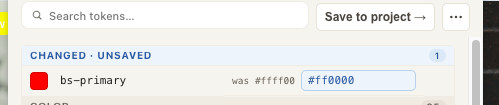
The Changed group
Any token that differs from what's committed to your project collects into a
pinned CHANGED · UNSAVED group at the top of the list, with a
was <old value> hint next to the new one. Clicking the group header (or the
count chip on the primary button) filters the list to just those rows; click
Clear to show everything again.
Grouping
Below the Changed group, rows group by taxonomy tier when your tokens carry one (Primitive / Semantic / Component), or by inferred type (Color / Number / Text) when they don't. A group larger than 10 rows caps itself with a Show all N → expander so one big color scale can't push the other groups off-screen.
Live preview session
The primary button walks one path: Load from App (pulls your project's
committed tokens) → Preview in app (opens a live session in your
app at ?preview=<id>, pushing every edit as you type, debounced ~250ms).
Once you've previewed, the button shows a count chip for further changes; if
nothing has changed since the last preview it disables with a note —
"Everything here is saved to your project." Previews are pure looks: nothing
is written until you explicitly save.

Secondary actions
Save to project → is always available once you have a working set — it's the same action as the toolbar button. Open PR stays inert until its precondition is met, and a note underneath says which one: "Open PR unlocks when GitHub is connected" (set a GitHub file URL in Settings) or "Open PR unlocks after a preview — it opens the change you previewed." Open PR itself is a manual, clipboard-assisted flow — see Use the Sorb plugin in Figma for what it actually does, and Token version to GitHub PR for the separate, fully-automated pipeline available from the dashboard.
Next
Works with Figma. Not affiliated with, or endorsed by, Figma. Figma is a trademark of Figma, Inc.