Install the Sorb plugin in Figma desktop (beta)
When you finish this page the Sorb™ plugin (Canopy) opens from Plugins → Development → Sorb in Figma desktop, ready to sign in. Budget about three minutes. The plugin is not on the Figma Community yet — during the beta you import it yourself from a zip.
Works with Figma. Not affiliated with, or endorsed by, Figma. Figma is a trademark of Figma, Inc.
Before you start
- Figma desktop (macOS or Windows). Importing a development plugin is a desktop-only feature — the browser version of Figma has no Import plugin from manifest… menu.
- A Figma account. Importing a plugin you have on disk does not go through the Figma Community, so searching the Community for "Sorb" finds nothing. That is expected during the beta.
- Optional, for the Connect step: a Sorb beta invite. Access is by request — request access and Nathan emails you an invite; installing the plugin itself needs no account.
1. Download the plugin
Download the curated zip from the latest GitHub Release. The link never changes; it always serves the newest release:
https://github.com/metatoy/sorb-canopy/releases/latest/download/sorb-figma-plugin.zip
Download sorb-figma-plugin.zip
The zip holds the plugin and nothing else — no tests, tools, or build output:
| File | What it is |
|---|---|
manifest.json | The plugin definition Figma imports. |
code.js | The main thread — reads and writes your Figma Variables. |
ui.html | The panel you see. |
lib/token-mapping.js | The Variable → token mapping as a readable, testable module. code.js carries the same functions inline (Figma's sandbox has no module loader), so Figma never loads this file. |
icons/*.svg | The panel's icon sources. ui.html inlines them, so Figma never loads these separately. |
Everything is plain, readable JavaScript with no build step — the same source
that is public at github.com/metatoy/sorb-canopy.
If you would rather clone than download, git clone https://github.com/metatoy/sorb-canopy.git
gives you the same five entries plus the tests and tools; the import steps
below are identical.
2. Unzip it somewhere permanent
Unzip the archive — double-click it on macOS, or right-click → Extract All…
on Windows. You get a folder with manifest.json at its top level.
Move that folder somewhere you will not clean up later (for example
Documents/Figma plugins/sorb-figma-plugin). Figma does not copy the files
when you import: it reads them from this folder every time you run the
plugin, so deleting or moving the folder breaks the plugin until you import it
again.
3. Import it from the manifest
- Open Figma desktop and open any design file. The Plugins menu is only available inside a file, not on the file browser.
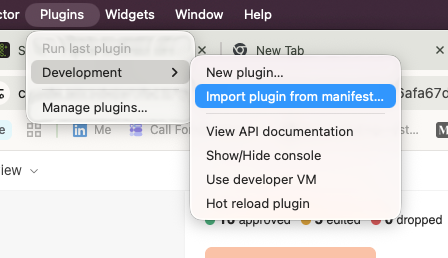
- From the main menu, choose Plugins → Development → Import plugin from manifest…
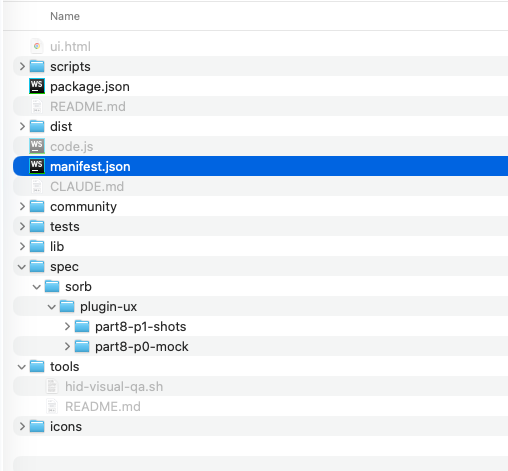
- In the file picker, select the
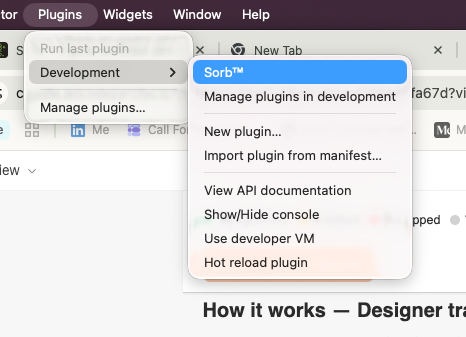
manifest.jsoninside the folder you unzipped in step 2. - Figma adds Sorb to Plugins → Development. Nothing opens yet.
4. Open it
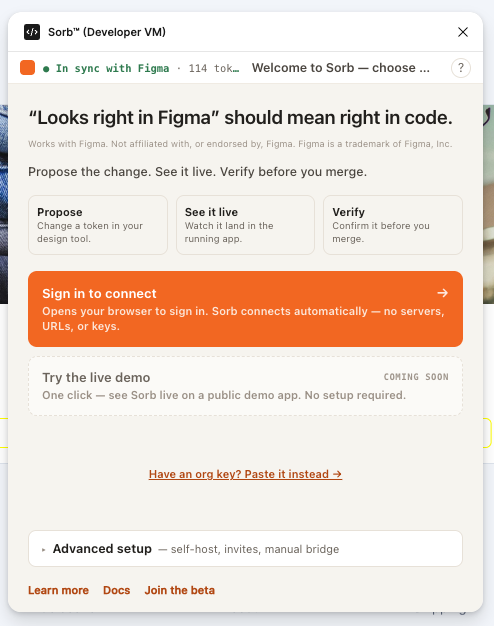
Choose Plugins → Development → Sorb. The panel opens at 475 × 560 px on the front door, with one primary action and a few smaller ones:
- Sign in to connect — opens your browser so Sorb can pair the plugin with your project.
- See it without installing — opens try.sorbcloud.com, the no-install tour.
- Have an org key? Paste it instead — for existing keys and CI. Skip it unless someone handed you a key.
- Advanced setup — self-host, invites, and manual bridge entry. Most people never open it.
5. Connect
Click Sign in to connect. The plugin opens app.sorbcloud.com in your
browser; sign in with the invite Nathan emailed you and the panel connects on
its own — you never type a URL or a key. The full walkthrough, including what to
do if the browser tab closes or the link expires, is in
Connect flows.
Previewing in a running app needs your app's URL. Signing in loads the tokens your project has already committed, but Preview in app only works once a developer has added Sorb to the app and connected it to your project. If nobody on your team has done that yet, open Advanced setup → Invite a developer on the front door: it copies a short message with the one command they need to run. The developer side is Getting started.
See it without installing
If you want to see the whole loop before importing anything — or show it to someone who can't install Figma desktop — open try.sorbcloud.com. It runs the real plugin panel against a canned bridge in your browser: edit a token, watch a storefront re-theme, and walk through opening the pull request. No account, no install. The same link is behind See it without installing on the plugin's front door. More on the hosted demos: Try it without installing.
Updating and troubleshooting
Update to a new release
Download the zip again from the same link, unzip it, and replace the contents of the folder you imported from — same path, same folder name. Figma reads the files fresh the next time you run the plugin, so no re-import is needed.
If you unzipped the new release to a different location, repeat step 3
(Import plugin from manifest…) and pick the new manifest.json. The
plugin's id in manifest.json never changes between releases, so Figma
updates the existing Development entry rather than adding a second Sorb.
Symptoms and fixes
| You see | Cause | Fix |
|---|---|---|
| There is no Development submenu, or no Import plugin from manifest… item. | You are in Figma in a browser, or you are on the file browser rather than inside a file. | Open the Figma desktop app and open a design file first. |
| Figma refuses the import, or the file picker will not accept the file you chose. | You selected the zip itself, a folder, or a file other than manifest.json; or the files were extracted without their folder layout (code.js and ui.html must sit next to manifest.json). | Unzip again and select manifest.json from inside the extracted folder. |
| Sorb is listed under Development but nothing opens, or it stopped working after it used to. | The folder was moved, renamed, or deleted — Figma reads the plugin from disk on every run. | Move the folder back, or repeat step 3 with the manifest at its new location. |
| Searching the Figma Community for "Sorb" finds nothing. | The plugin is not on the Community yet. | Install from the zip as above; a Community listing comes later. |
| Sign in to connect did not open a browser. | The hand-off from Figma to your browser did not go through. | Click Reopen the browser on the waiting screen. If it still fails, Connect flows covers the org-key alternative. |
| Preview in app reports that your app wasn't reachable. | Your project has no running app connected to Sorb yet. | Ask a developer to add Sorb to the app — Advanced setup → Invite a developer copies the instructions — or use try.sorbcloud.com to see a preview against the demo storefront. |
Anything else: Troubleshooting covers connection, preview, and binding problems once the plugin is open.
Next
- Connect flows — sign in, then every fallback.
- Use the Sorb plugin in Figma — the propose → preview → verify loop.
- Getting started — the developer side: add Sorb to a React app.
Works with Figma. Not affiliated with, or endorsed by, Figma. Figma is a trademark of Figma, Inc.