Connect flows
The plugin's front door promotes exactly one path — sign in. Everything else (an org key, a developer's invite, or a fully manual setup) still works, tucked under Advanced setup for the cases that need it.
Don't have the plugin in Figma yet? Install it first — during the beta it's a zip you import into Figma desktop, not a Community install.
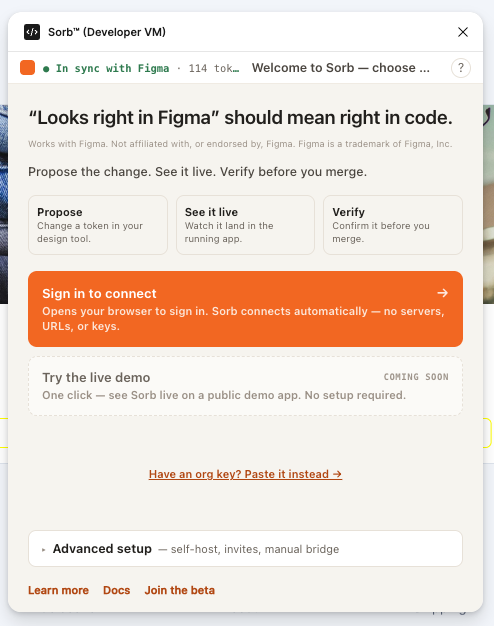
1. Sign in (primary)
- Click Sign in to connect. The card reads "Opens your browser to sign in. Sorb connects automatically — no servers, URLs, or keys."
- The plugin opens
app.sorbcloud.com/plugin-connect?code=…in your system browser and shows a waiting state: "Waiting for you to sign in in your browser…" with Reopen the browser and Cancel. - Sign in with the invite Nathan emailed you (see Cloud & accounts). The cloud resolves your org and its default project and hands the plugin a publishable key together with the bridge and app URLs.
- The plugin reports "Connected — you're set. Opening your tokens…" and loads the tokens already committed to your project.
The pairing code is single-use and expires in about five minutes; past that the panel says "This took too long — the sign-in link expired. Try again." — click Sign in to connect again for a fresh one.
This is the only path a new user needs. Everything below exists for the cases sign-in doesn't cover.
Beta access is by request — request access. Once invited, you sign in at app.sorbcloud.com.
Already have an org key?
A small link under the primary card — Have an org key? Paste it instead
→ — skips the browser round trip. Paste a sorb_pk_… publishable key
and Connect; the plugin resolves your org's bridge from it directly. Use
this for an existing key, a CI/headless setup, or when opening a browser
isn't practical.
2. Advanced setup
Open the Advanced setup disclosure (summary: "Advanced setup — self-host, invites, manual bridge") for the self-host paths. None of these are needed on the hosted path — they exist for headless/CI use and for when the designer and developer are the same person.
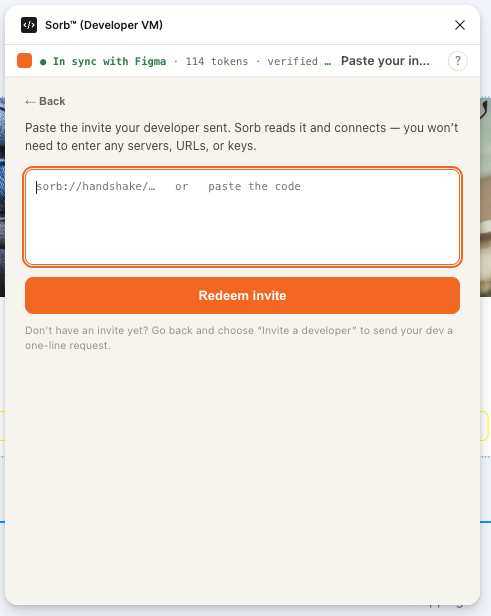
Paste an invite from your developer
Redeems a handshake code — a technical connection bundle a developer generates locally, distinct from an org invite (which grants org membership, not a connection):
sorb handshake --copy
Paste the resulting code into Paste an invite from your developer and the plugin fills in the bridge, app, and key for you — nothing else to configure.
Invite a developer
Invite a developer copies a message for you to send to whoever runs the app's code:
1. Install the bridge:  npm i -g @sorb/juice
2. Start it and leave it running:  sorb dev
3. In a second terminal, make my invite:  sorb handshake --copy
4. Send me the code it prints. Keep sorb dev running so I can connect.
Paste the code they send back into the return field that appears, and click Redeem invite.
Manual bridge setup
For technical users: type the bridge origin, app URL, and API key by hand — the same fields that live in Settings → Advanced setup once you're connected.
Local-bridge discovery
If a Sorb bridge is already running on your computer — the case where you're both the designer and the developer — opening Advanced setup probes for it once. If found, a banner appears: "Found a Sorb bridge running on this computer." with a one-click Connect. The plugin never probes for a local bridge before you open Advanced setup.
Which should I use?
| You are… | Use |
|---|---|
| Anyone starting out | Sign in |
| A team member who already has an org key | Paste an org key |
| A developer inviting a designer | Advanced → invite a developer |
| Offline / air-gapped / CI | Advanced → manual bridge setup |
Next
- Cloud & accounts — signing up, orgs, and keys.
- Settings View — where the connection fields live once connected.
- Use the Sorb plugin in Figma — the full plugin walkthrough.
Works with Figma. Not affiliated with, or endorsed by, Figma. Figma is a trademark of Figma, Inc.